Create a Realistic Gel Text Effect
Updated Last updated: May 4, 2026
Learn how to create a glossy gel text effect using text layers, shadows, glow, and emboss effects in Photo Pos Pro.
Step-by-Step Guide
1. Create a new blank image
Create a new 800 x 250 blank image using File → New → Blank Image.
2. Choose the Text Block tool
Select the Text Block tool from the left toolbar.
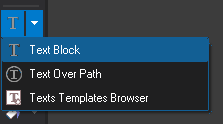
3. Create the text object
Drag the mouse to create a text area, then type the desired text.
4. Select a large font
Choose a large bold font for the best gel effect appearance.
5. Set the text color
Set the text color to turquoise. The original tutorial used RGB values R=72, G=196, B=221.

6. Position the text
Move and resize the text object to the desired location.
7. Open the Shadow effect
Make sure the text layer is selected. Go to Effects → Light → Shadow.
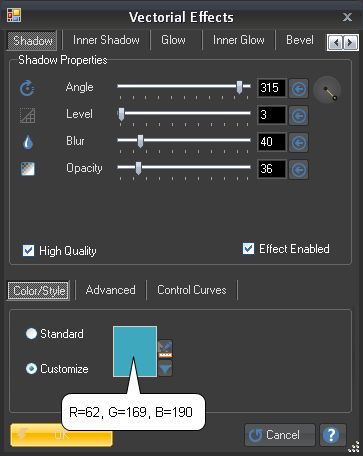
8. Apply the shadow settings
Enter the shadow values shown in the original tutorial to create depth behind the gel text.
9. Open the Inner Shadow tab
Switch to the Inner Shadow tab in the Light Effects window.
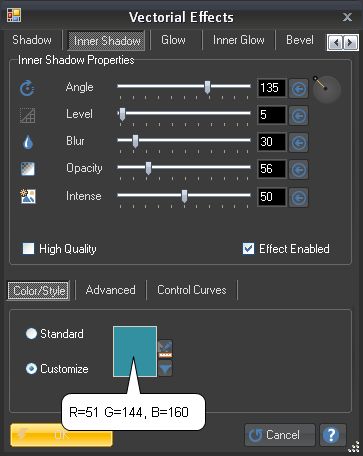
10. Apply inner shadow
Enter the inner shadow values shown in the tutorial to improve the glossy depth effect.

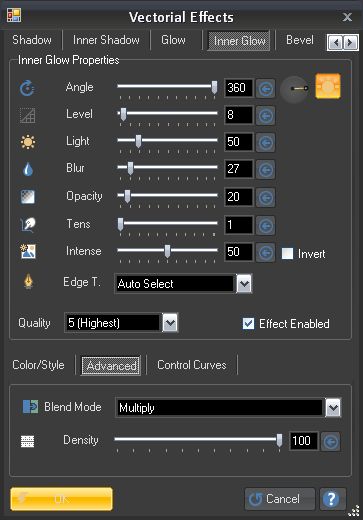
11. Open the Inner Glow tab
Switch to the Inner Glow tab in the Light Effects window.
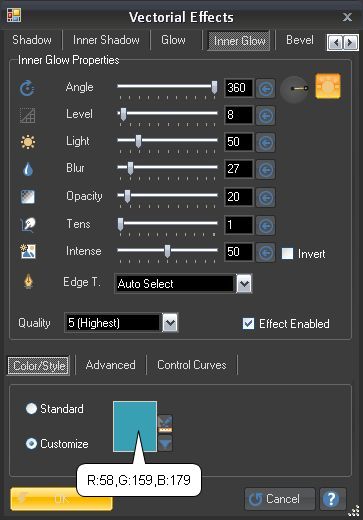
12. Apply inner glow
Enter the Inner Glow values shown in the tutorial to create the soft translucent gel look.
13. Open the Emboss tab
Switch to the Emboss tab in the Light Effects window.
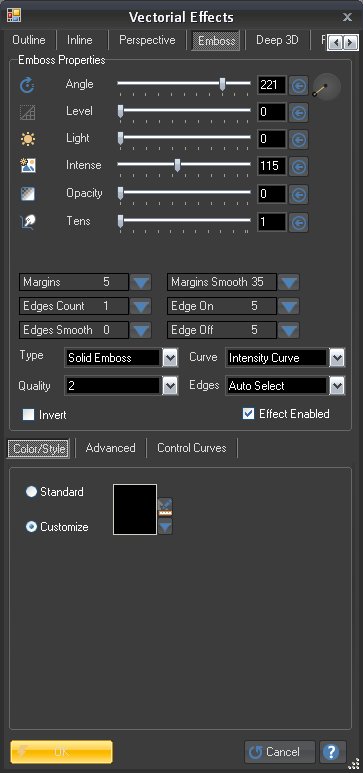
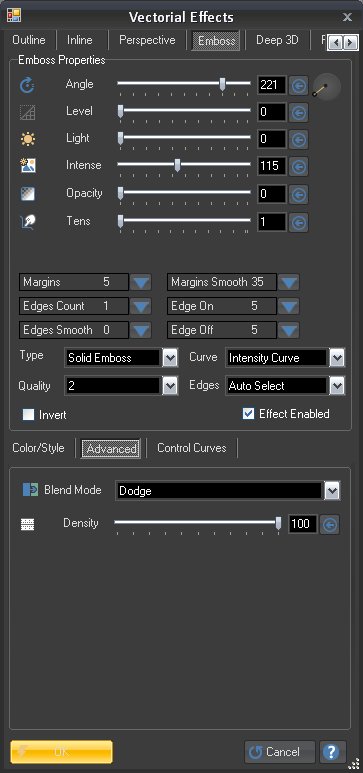
14. Apply emboss settings
Enter the emboss values shown in the tutorial to create the raised gel appearance.
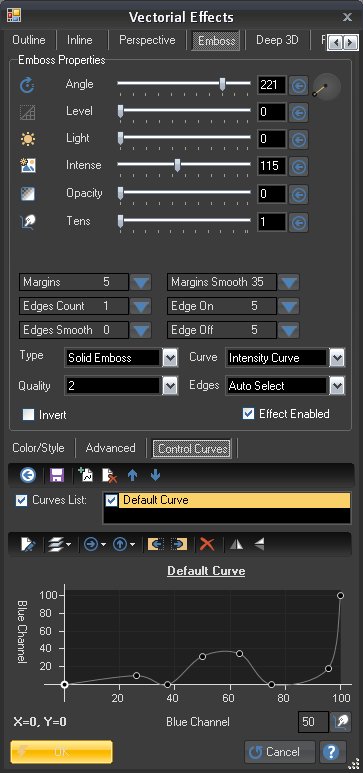
15. Apply emboss curve
Enter the emboss curve as shown.
16. Confirm the effects
Click OK to apply all light effects to the text layer.
17. Review the final gel text
The final result should look like glossy transparent gel text with depth and highlights.

18. Edit the text later if needed
Since text objects are vector layers, you can later change the text, font, size, and colors using the Text tool.