Photo Editing Basics
Straighten a Photo with the Leveler Tool
Updated Last updated: May 4, 2026
Learn how to straighten tilted photos using the Leveler tool in Photo Pos Pro.
Step-by-Step Guide
1. Open your image
Open the tilted image using File → Open or Ctrl + O.
2. Select the Leveler tool
Choose the Leveler tool from the Tools toolbar.
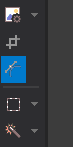
3. Draw a reference line
Draw a line along a horizontal or vertical element that should be straight.

4. Auto straighten the image
Press Enter to apply - the program will rotate the image to align it properly.
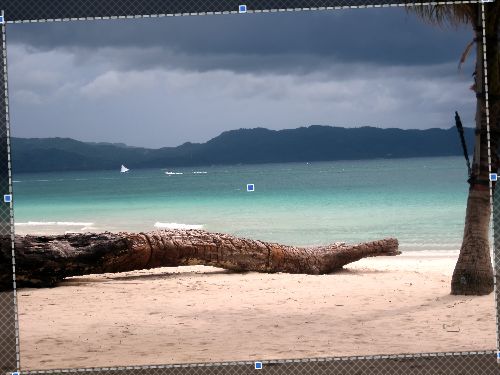
5. Crop edges if needed
After rotation, crop the image to remove empty edges.
Frequently Asked Questions
Yes. Photo Pos Pro includes leveler tool that help straighten photos quickly.
Yes. Simply click on File -> Save As menu.
Yes. Simply use the same steps for both of them.
Tip: For best results, use high-quality images and zoom in when editing fine details.