Design & Effects
Create Text Over Path Effects
Updated Last updated: May 4, 2026
Learn how to create curved and shaped text effects using the Text Over Path tool in Photo Pos Pro.
Step-by-Step Guide
1. Create a new blank image
Create a new 800 x 800 blank image using File → New → Blank Image.
2. Choose the Text Over Path tool
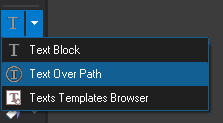
Select the Text Over Path tool. Click and drag from the starting point to the ending point where you want the text path to appear.
3. Type your text
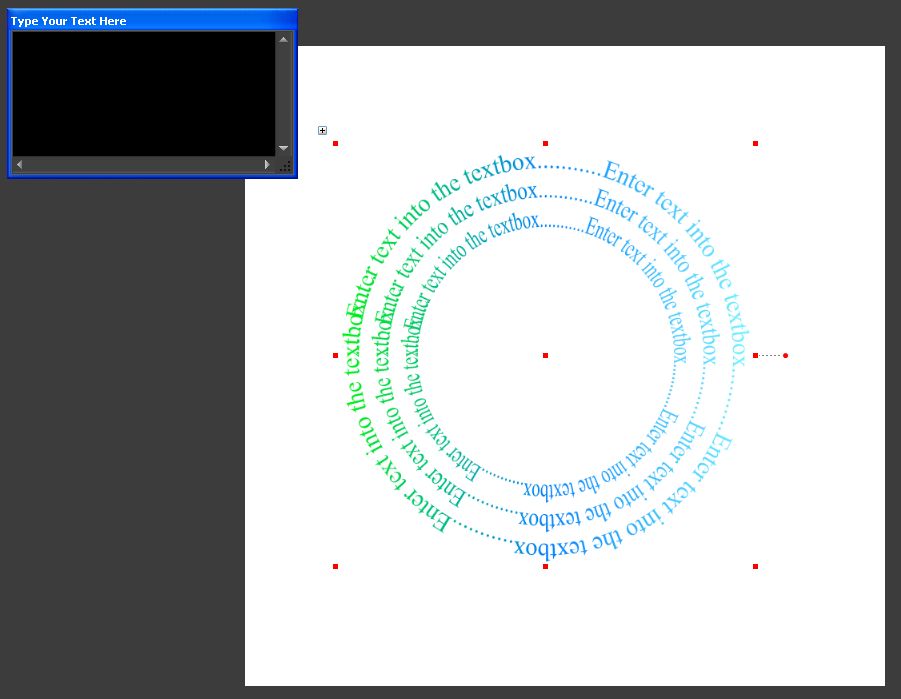
Type the desired text in the text dialog window.
4. Adjust the path and text settings
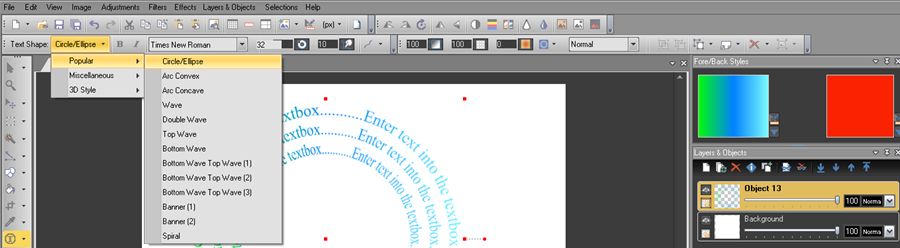
Use the tool properties toolbar to set the desired path, size, font, and text options. Use the Fore Style picker to choose the text color or style.
Related Tutorials
Tip: For best results, use high-quality images and zoom in when editing fine details.